Want to see how companies
are benefited ?
Use Mera Monitor
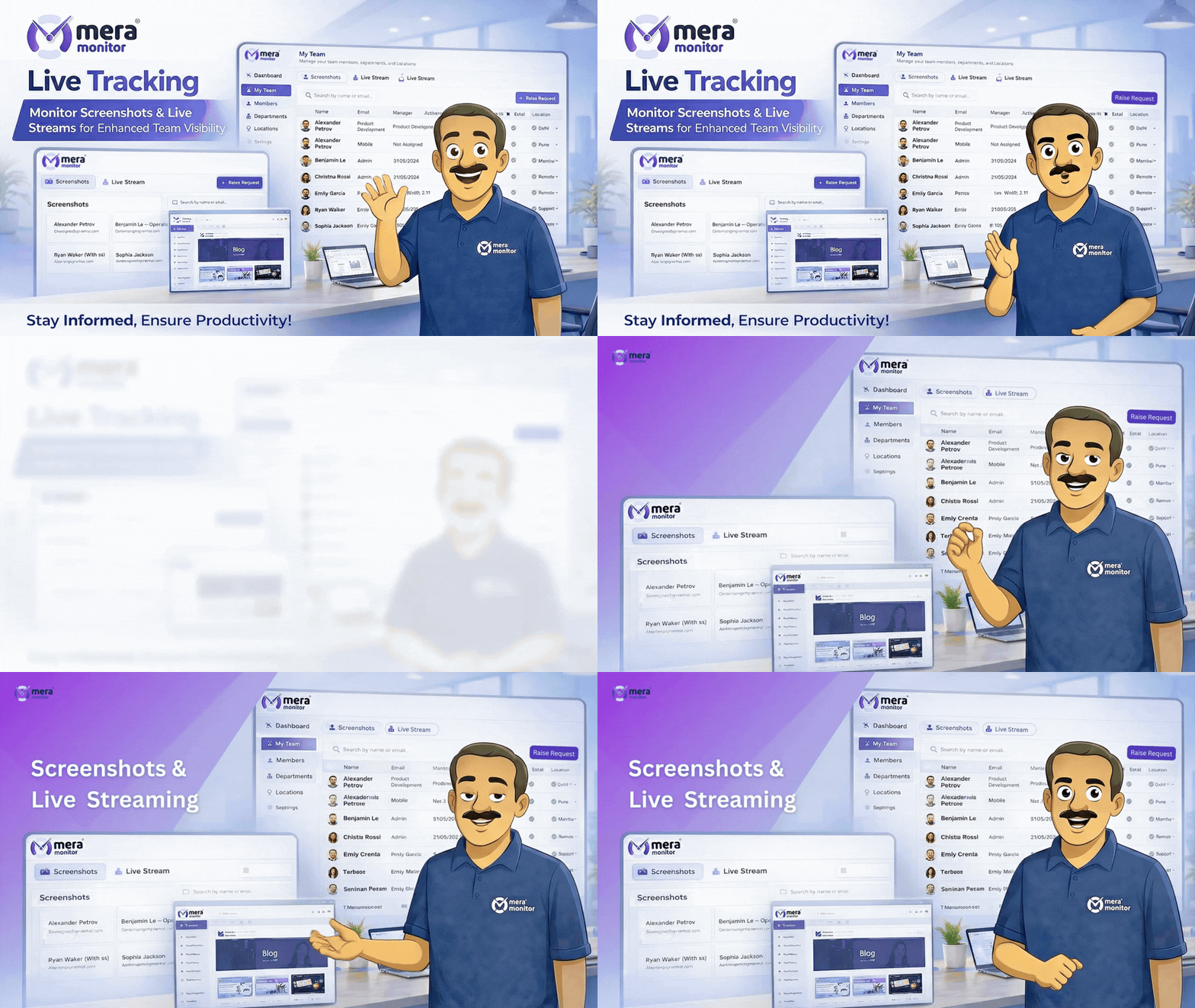
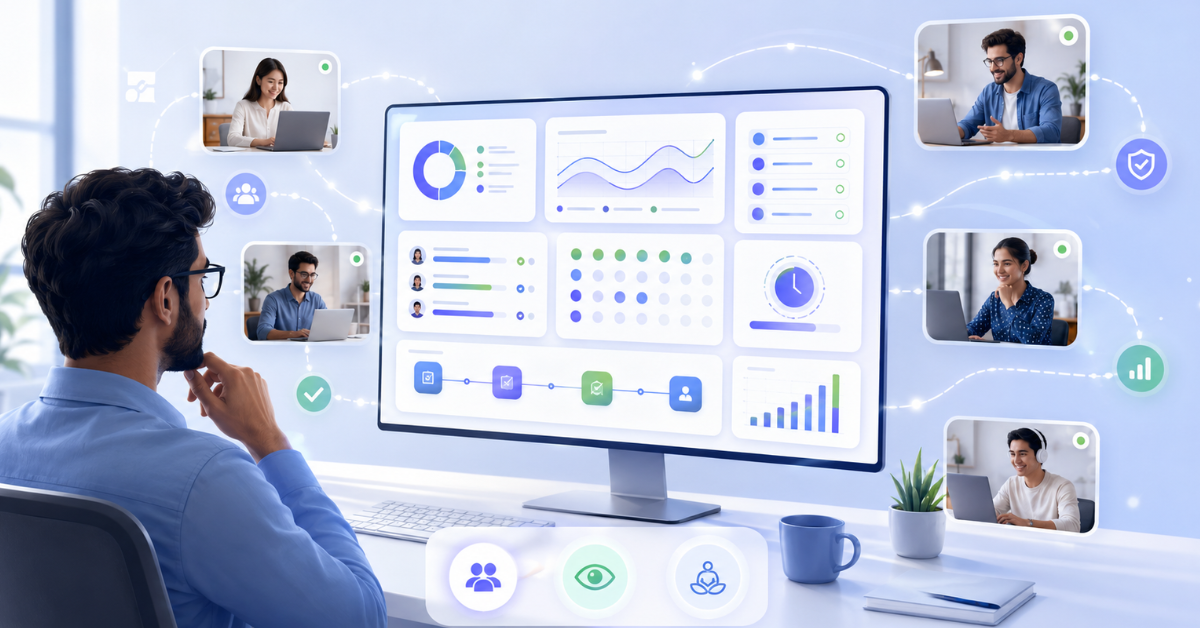
See ongoing screen activity during defined work hours to understand whether work is moving as expected.
Review live screen activity to get better clarity into current tasks, tools, workflows, and work progress.
Use real-time visibility to reduce dependency on delayed status updates, repeated calls, or manual screenshots.
See when employees are spending too much time on the same screen, tool, or process and may need support.
Understand whether work is slowing down because of tool issues, repeated steps, or inefficient workflows.
Provide guidance, training, or resource support before small bottlenecks affect delivery timelines.
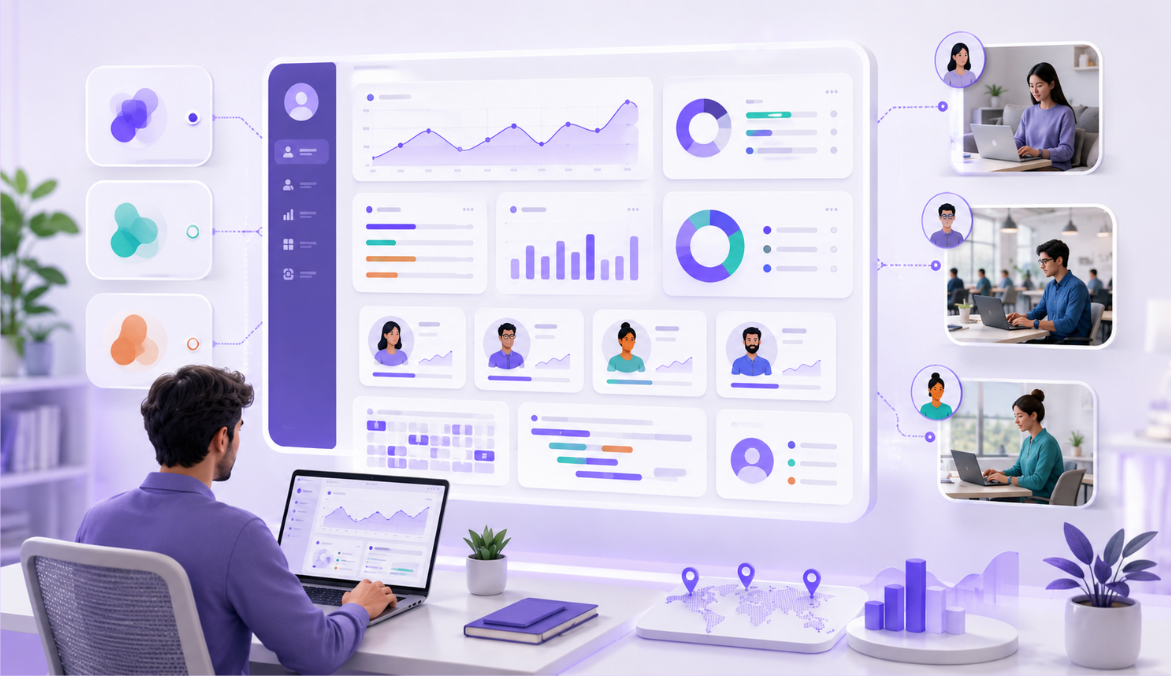
View live work activity for employees working from home, office, client locations, or different shifts.
Give managers clearer context into active work instead of relying only on online status or manual updates.
Use live screen context to ask better questions, provide relevant support, and avoid unnecessary interruptions.
Monitor important work activity when managers need immediate visibility into task progress or execution quality.
Understand ongoing screen activity during support shifts, operations work, service delivery, and time-sensitive processes.
Identify potential delays, wrong workflows, or support needs early so managers can take faster action.
View live work activity instead of repeatedly asking employees for task updates.
Use screen context to understand what is happening before starting a follow-up or performance discussion.
Help managers stay informed while allowing employees to focus on their work.
Mera Monitor helps organizations use screenshot monitoring software in a responsible way by keeping screenshot capture focused on work hours, controlled access, configurable rules, and privacy-friendly settings.
It gives managers the work context they need while helping companies stay aligned with internal policies, employee communication, and data access controls.
Mera Monitor helps organizations improve real-time work visibility while keeping live screen monitoring transparent, secure, and aligned with defined work-hour policies.
Enable live screen visibility during defined working hours, so monitoring stays focused on business activity and workplace requirements.
Ensure live screen access is available only to authorized users based on their role, responsibility, and internal approval structure.
Help employees understand when live screen monitoring may be used, who can access it, and how it supports productivity, workflow visibility, and timely support.
Allow employees using personal devices to turn off Mera Monitor outside work hours, helping separate work monitoring from personal time.
Use live screen visibility responsibly for support, BPO, IT, operations, finance, healthcare, and service workflows where real-time oversight may be needed
Configure live monitoring practices around your organization’s work policies, privacy expectations, team structure, and compliance requirements
Keep live screen monitoring limited to authorized business use, helping managers view ongoing work activity without unnecessary access or misuse.
Before enabling screenshot monitoring, be clear about why your organization needs it. The goal is not to track every action. The real purpose is to understand work progress, reduce guesswork, and support fairer productivity reviews.
Screenshot records are useful when teams work remotely, manage client projects, handle shift-based work, or rely heavily on digital tools. They help managers see what was happening during a specific work period instead of depending only on manual updates or assumptions.
Best used for:
Work visibility, productivity reviews, accountability, client work validation, remote team management, and fairer follow-up conversations.
Every organization has different work hours, privacy expectations, and review needs. That is why screenshot rules should be based on your company policy instead of using the same setup for every team.
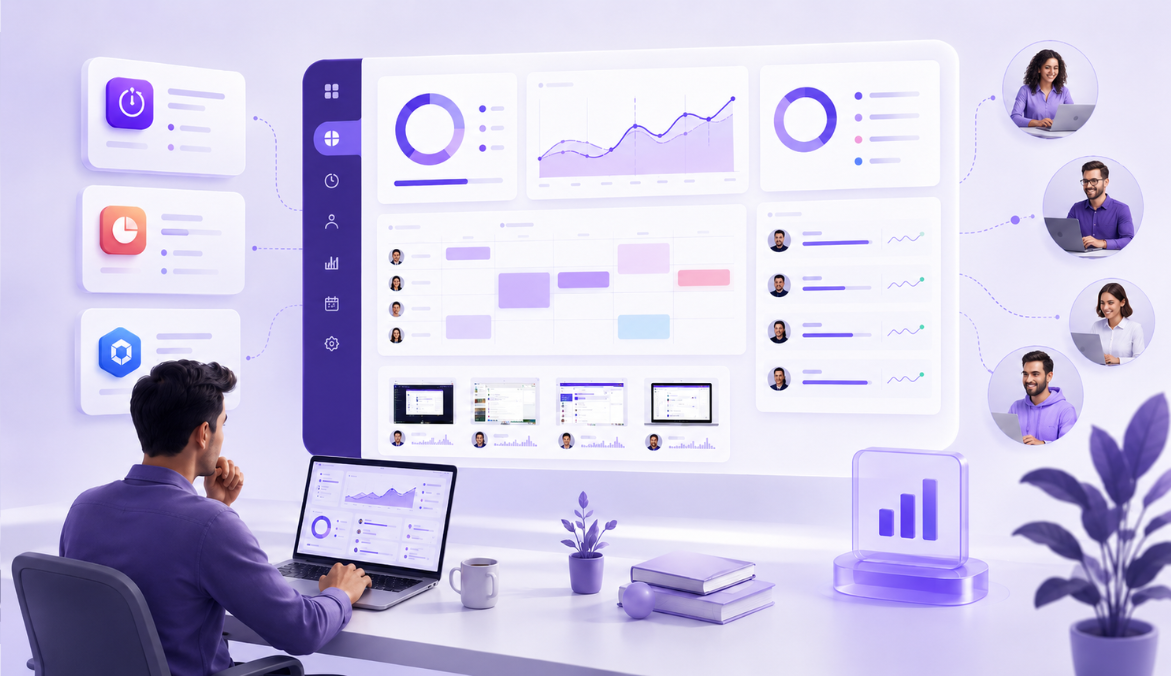
With Mera Monitor, admins can configure screenshot preferences around how their teams work. This includes capture settings, work-hour rules, blur options, and access permissions.
Decide in advance:
When screenshots should be captured, which teams need screenshot review, whether blur should be enabled, who can access screenshot records, and how often the data should be reviewed.
Screenshot tracking should never feel unclear or unexpected to employees. When people know what is tracked, when it is tracked, and why it is used, the process becomes more transparent and easier to accept.
Explain that screenshots are captured during defined work hours to support work visibility, productivity reviews, and better follow-ups. Also make it clear that access is limited to authorized users and privacy settings can be applied where needed.
Use Mera Monitor
Screenshots should not be reviewed in isolation. A single image may not show the complete picture of someone’s workday.
For a fair review, managers should look at screenshot records along with work hours, activity levels, app and website usage, attendance, project updates, and the type of work assigned. This helps avoid quick assumptions and gives a more balanced view of productivity.
For example, low activity may not always mean low productivity. An employee may be reading a document, attending a meeting, reviewing a client brief, or waiting for system access. Work-time screenshots add useful context, but they should be reviewed with the full work picture.
Better review approach:
Look at time, activity, tools used, task type, and screenshot records together before making any decision.
Screenshot data should be handled carefully. Not everyone in the organization needs access to these records.
Mera Monitor supports role-based access, so screenshot visibility can be limited to the right people. This helps organizations protect employee privacy, maintain trust, and keep review permissions under control.
Access should usually be given only to people responsible for productivity reviews, team management, delivery tracking, or compliance.
Recommended practice:
Give screenshot access only to admins, managers, or authorized decision-makers who genuinely need it.
The best use of screenshot records is not to create pressure. It is to make conversations more specific, fair, and useful.
Instead of asking vague questions like “What were you doing?”, managers can use visual work records to understand blockers, delays, distractions, or support needs.
For example, they can ask:
“Were you blocked during this time?”
“Was this task taking longer than expected?”
“Do you need support with this workflow?”
“Is this tool or process slowing you down?”
This turns screenshot review into a support tool, not just a tracking feature.
Use it for:
Coaching, workload review, blocker identification, process improvement, and fair productivity discussions.
Use Mera Monitor
Screenshot settings should evolve as your team, policies, and work models change.
A setup that works for a remote support team may not work for a design team, sales team, or leadership role. That is why it is important to review screenshot frequency, blur settings, work-hour rules, and access permissions from time to time.
Regular reviews help keep screen capture relevant, fair, and aligned with business needs.
Check regularly:
Screenshot frequency, blur settings, access permissions, employee communication, work-hour rules, and policy alignment.
Screenshot monitoring can give leaders useful visibility, but it should always be used with trust and transparency.
The goal is to help teams work better, not to make employees feel watched. When used properly, screenshot records can reduce unnecessary follow-ups, improve accountability, and support better decision-making.
Mera Monitor helps create this balance with work-hour focused tracking, configurable rules, blur options, and role-based access.


The right approach:
Use screenshot monitoring to bring clarity into work, support employees better, and make productivity decisions with more confidence.